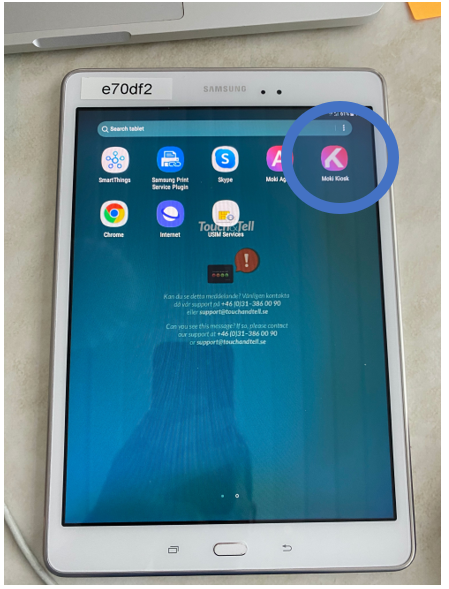
Touch & Tell is using two different tablets for the surveys. This is a guide for the Samsung tablet. If your tablet looks like the one on the picture below, you have the Samsung-model.
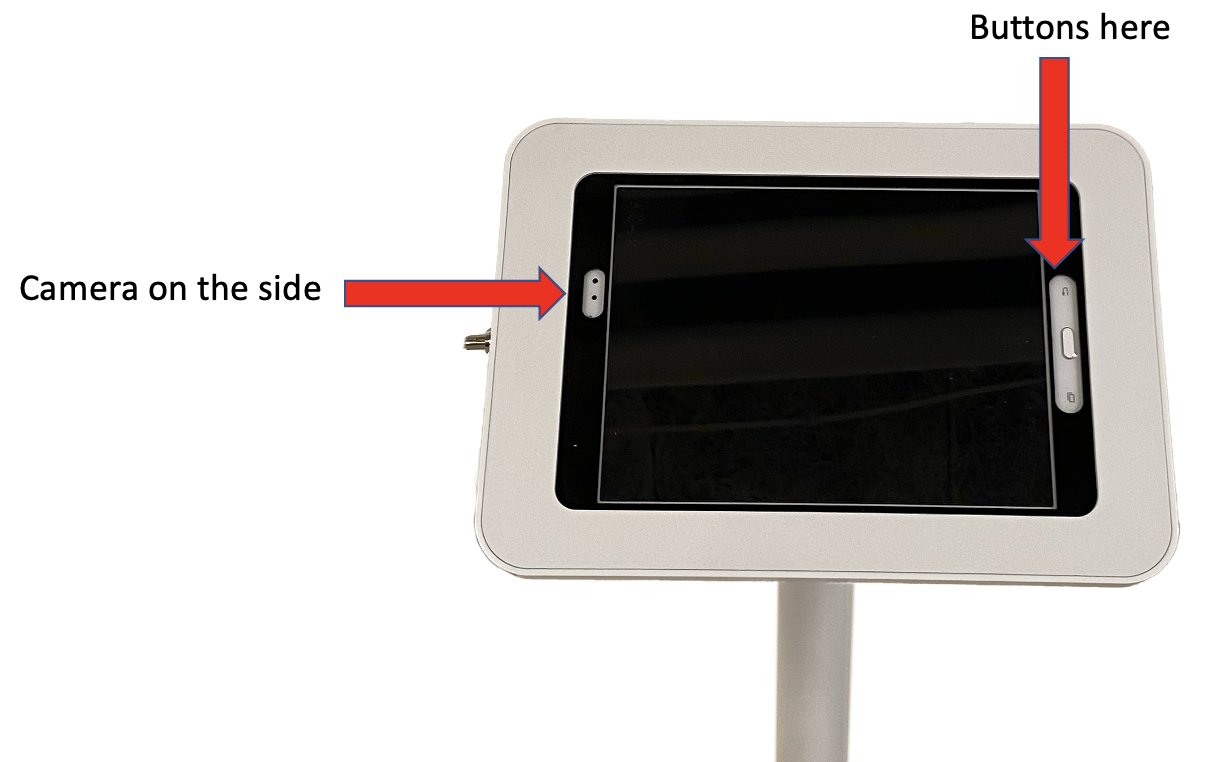
Let's get started:
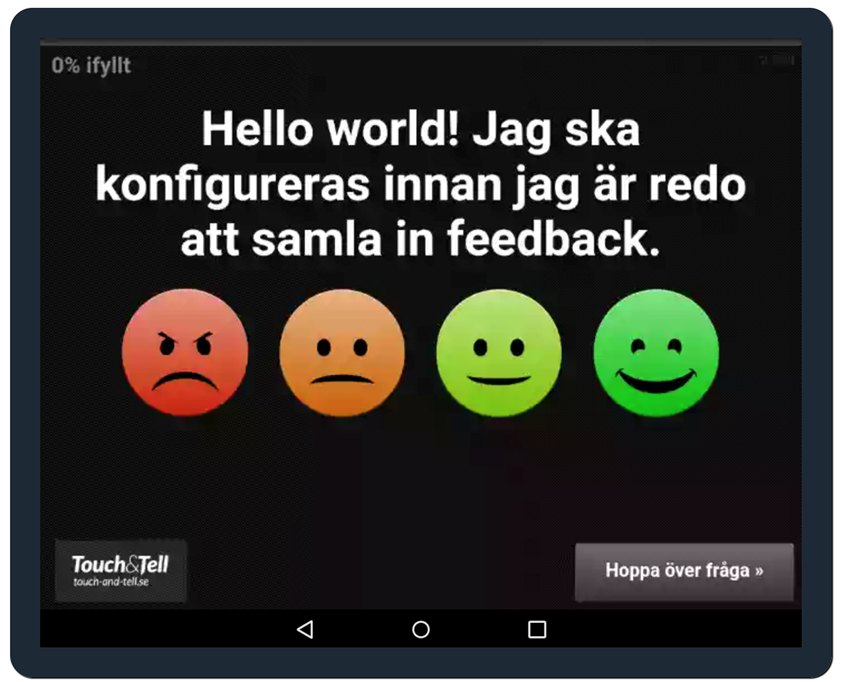
Step 1: Make sure your tablet is up and running.
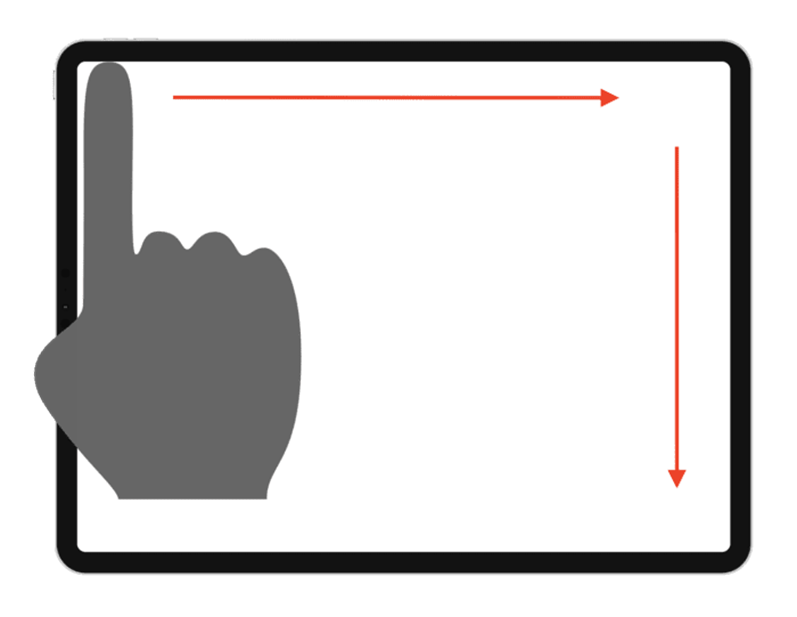
Step 2: To open the admin panel, swipe on the screen like the picture below.
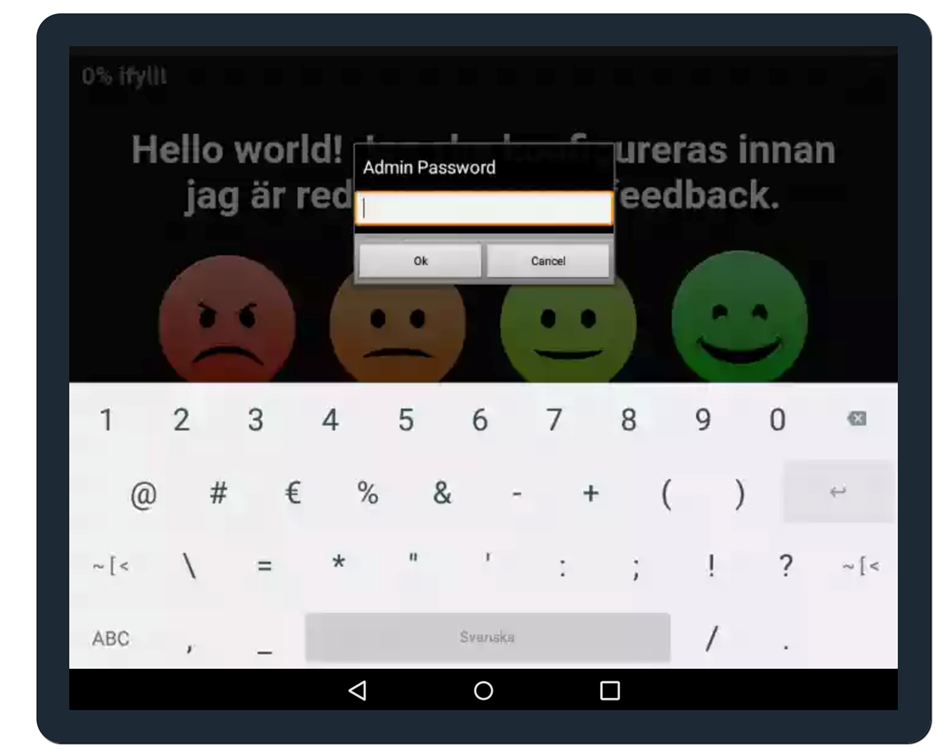
Step 3: A popup screen will appear that asks you to write the admin password. If you don't have it or have forgotten it please contact support@touchandtell.se
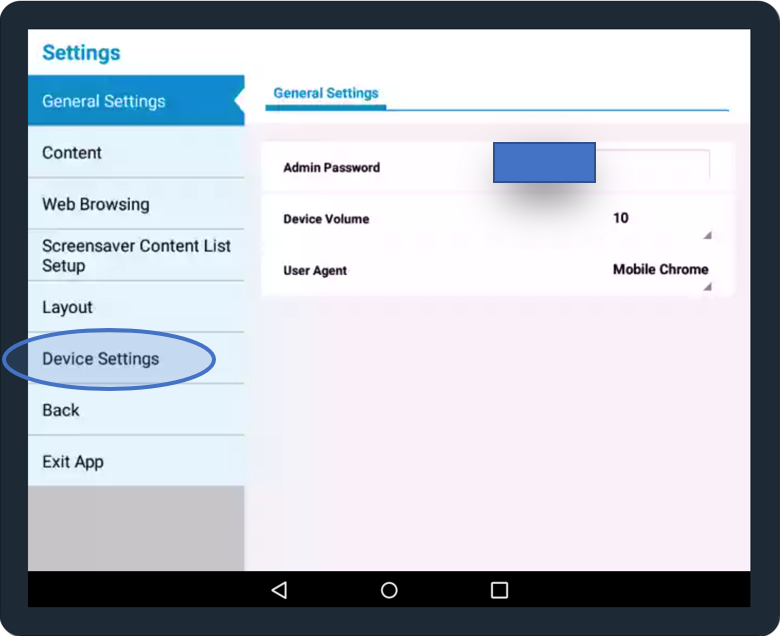
Step 4: When you have written the password the screen will look like below, go to device settings.
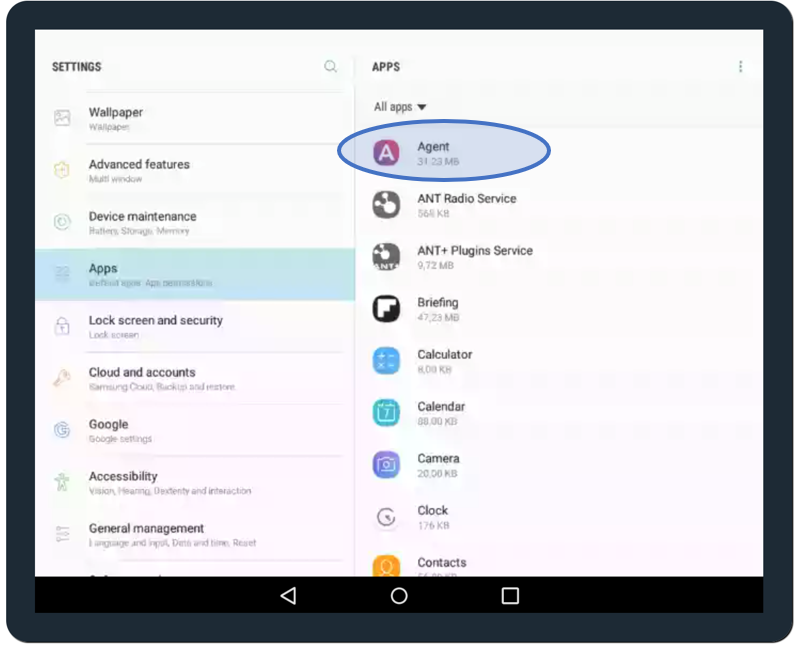
Step 5: Press the option apps and choose the one called "Agent".
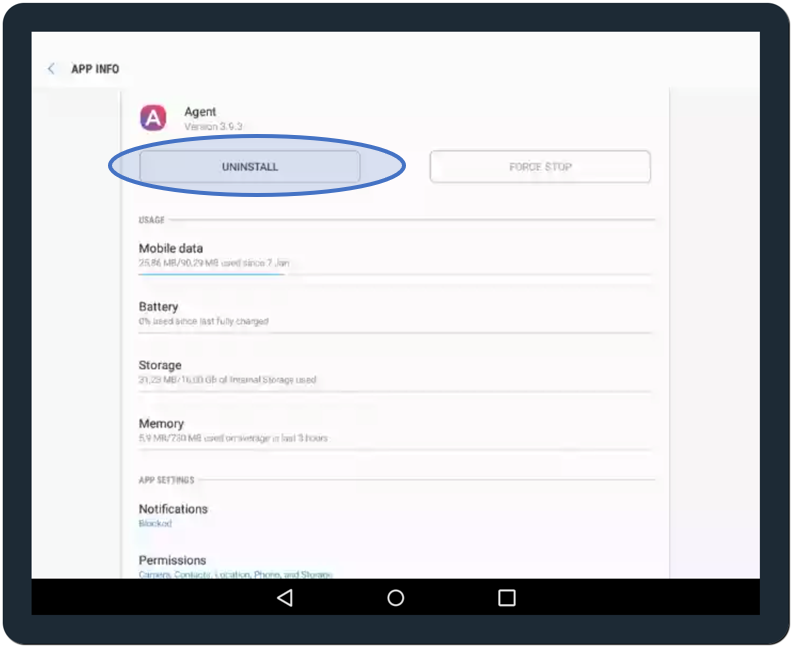
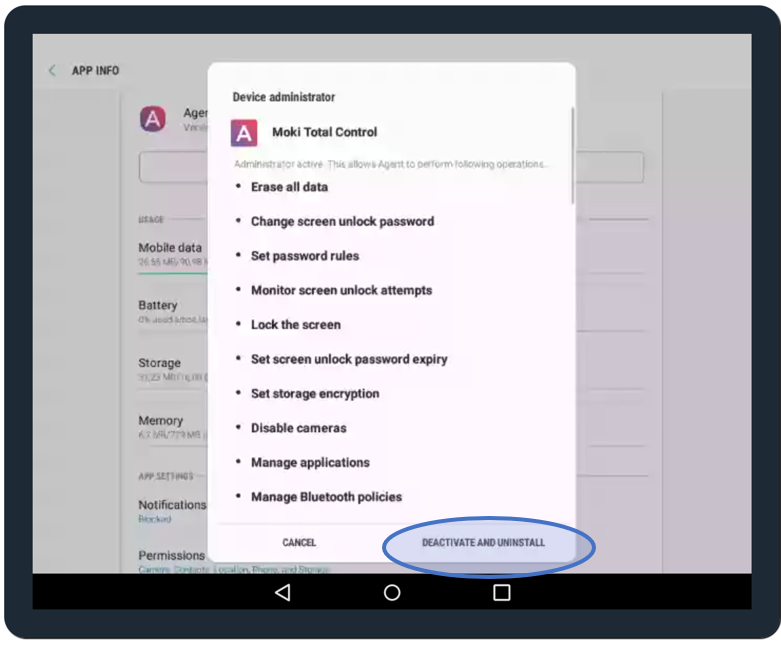
Step 6: Uninstall the app Agent
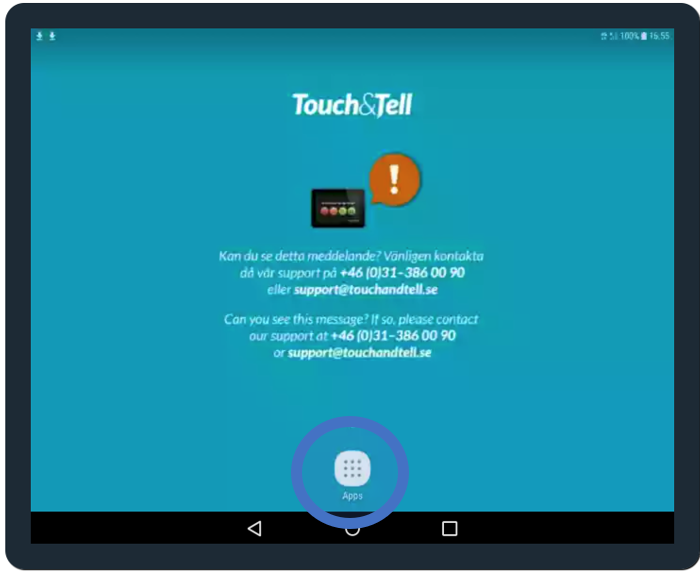
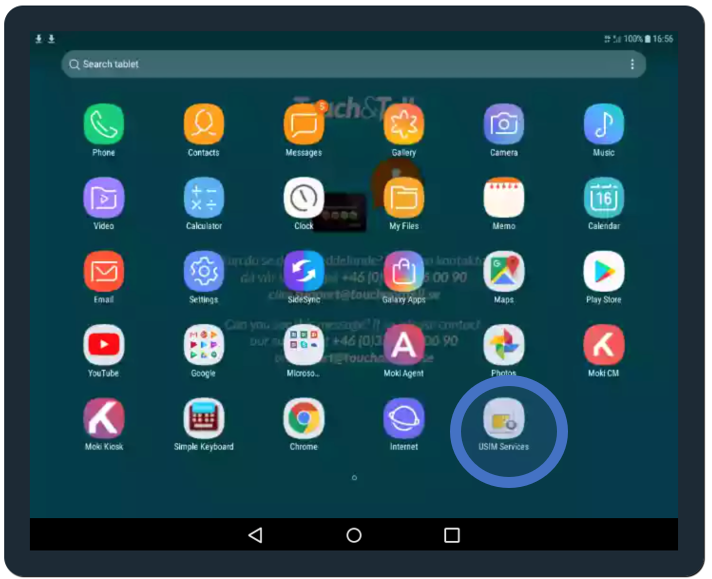
Step 7: Go to the home screen and select the app "USIM services"
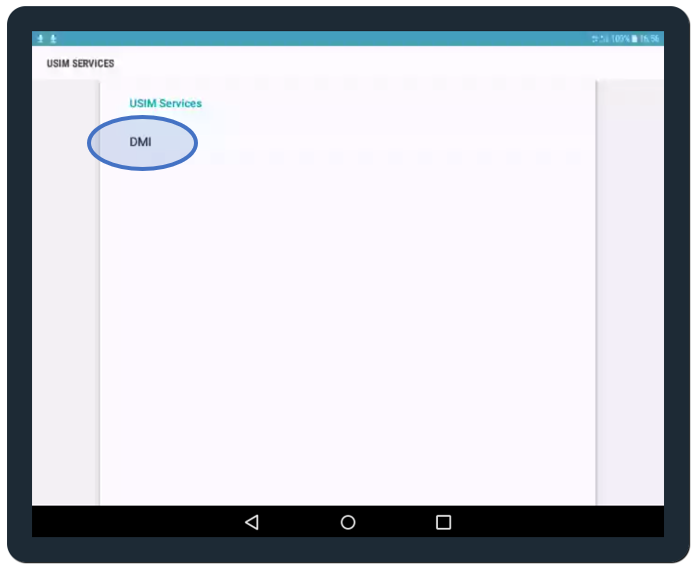
Step 8: Press on "DMI".
Step 9: Press on "Settings".

Step 10: Press on "Profile".
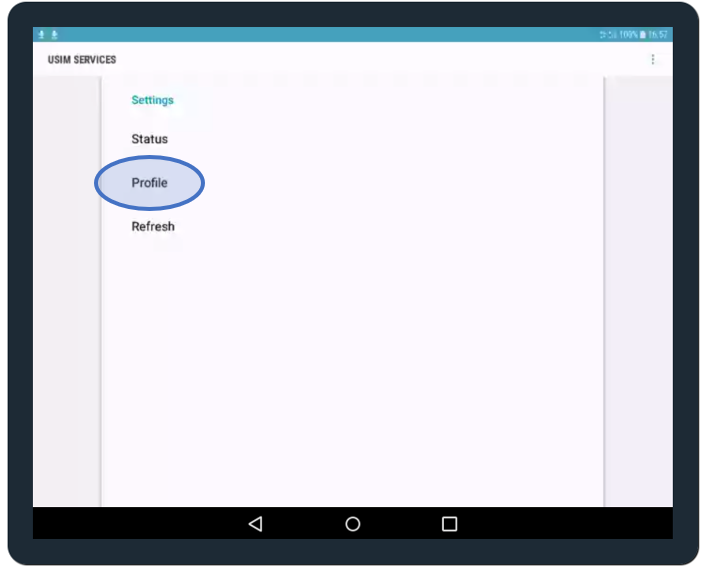
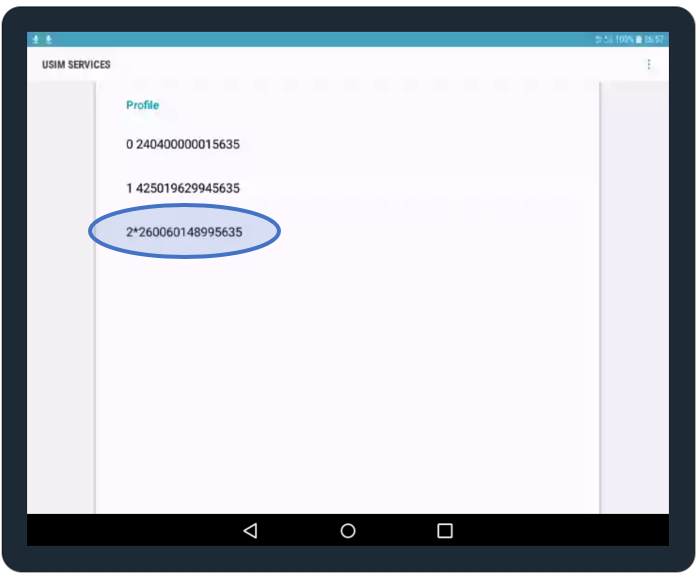
Step 11: Choose the option that starts with 2*XXXX.
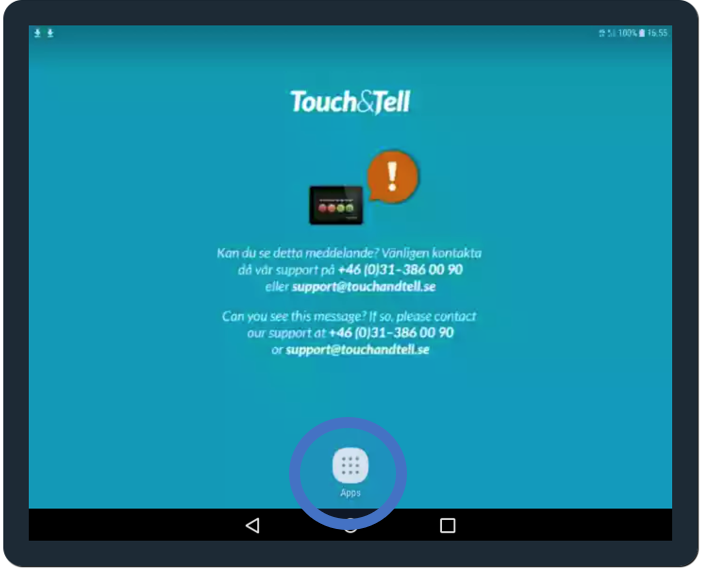
Step 12: Go back to the home screen.
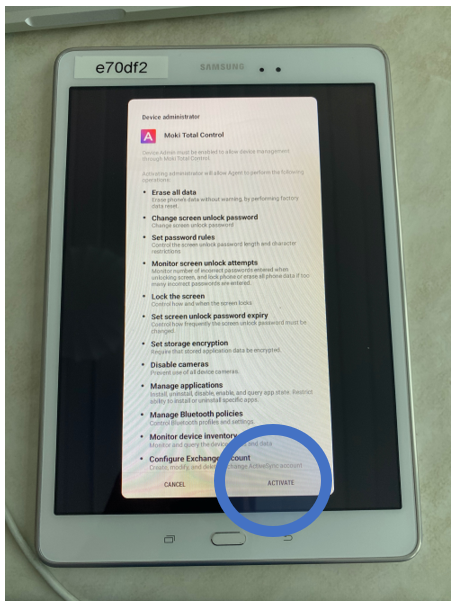
Step 13: Look for the app "Moki Agent".
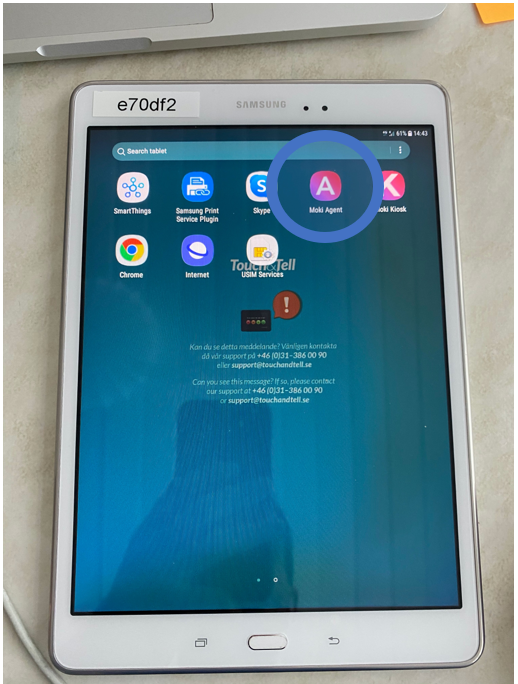
Step 14: Open the app and press "ACTIVATE".
Step 15: Go back and then press Moki Kiosk.